Free Chrome extension · version 1.6

Select text. It's saved.

Turn on saving, then read as usual. Every piece of text you select is kept with the page it came from, ready to search, copy or export when you're done.

For Chrome, and other Chromium browsers such as Edge and Brave.

en.wikipedia.org/wiki/Highlighter 6
The Highlight & Save popup: saving is on, six saved highlights grouped under Today, with site icons for Wikipedia, MDN, NASA, GitHub and BBC.
Try it here

Switch saving on and select some text below

This works the same way as the extension does on any website: select with the mouse, let go, and it's saved. Nothing leaves this page.

Turn saving on first.

How highlighters work

A highlighter marks text with a bright, see-through ink. The colour is strong enough to catch your eye when you skim the page later, but light enough that the words underneath stay easy to read.

Most highlighter ink glows under daylight because it turns invisible ultraviolet light into visible colour. That's why yellow and green look almost brighter than the white paper around them.
Saved0 saved
  • Your selections will appear here.
Features

Everything you saved, easy to find again

One switch

Turn saving on when you start reading and off when you're done. Saving always starts off when Chrome opens, so it's never left on by mistake.

Keyboard shortcut

Press Alt + Shift + S to switch saving on or off without opening anything. The toolbar badge shows your count while it's on.

Filter by site

Every site you saved from gets an icon under the search bar. Click one to see only what you saved there.

Search and dates

Search your text and page titles. Highlights are grouped under Today, Yesterday, This week and by month.

Copy and export

Copy one highlight with a click, copy them all at once, or export them as a plain text file.

Undo

Deleted something, or cleared everything? Undo puts it back exactly where it was.

Looks at home

Light and dark, following your system

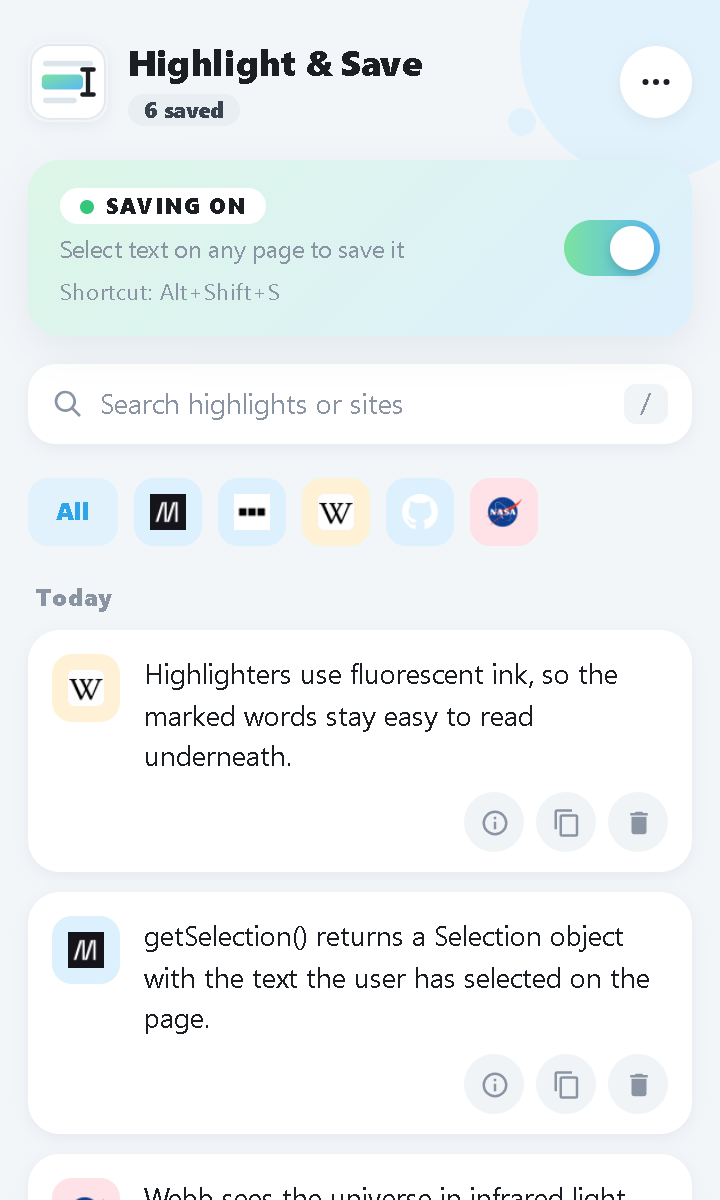
The popup in light mode, with saved highlights from several sites.
Light modeYour highlights with their site icons, newest first.
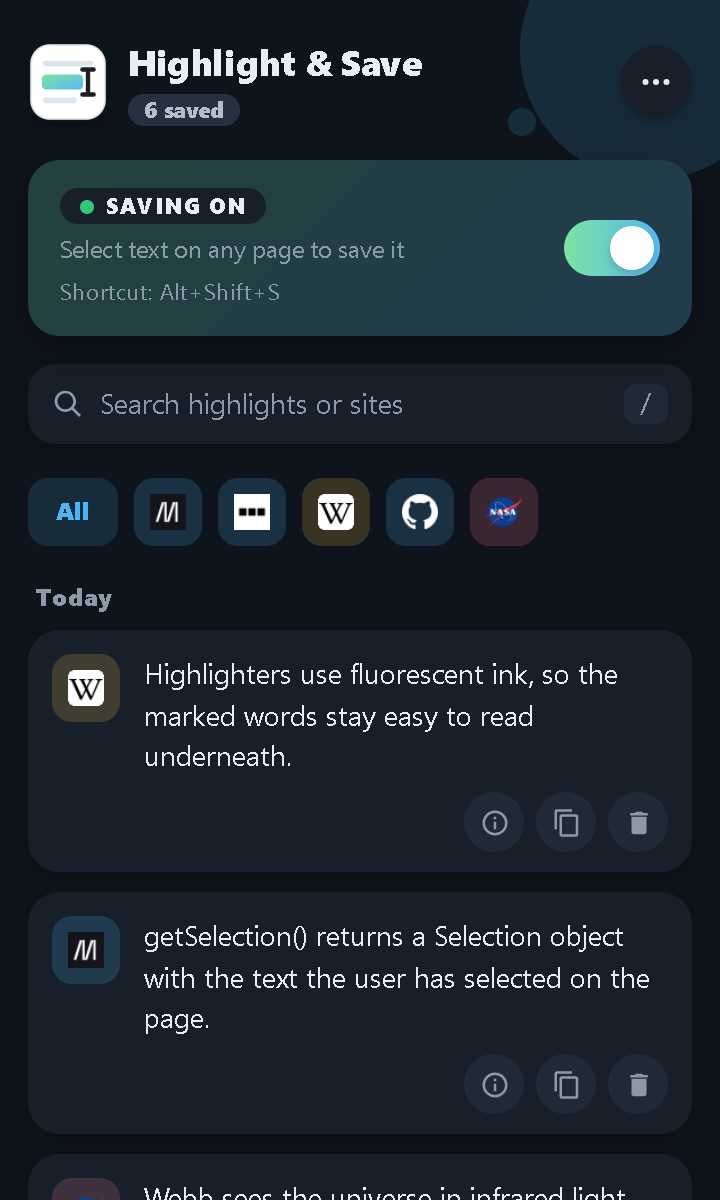
The same popup in dark mode.
Dark modeSwitches automatically with Chrome or your computer.
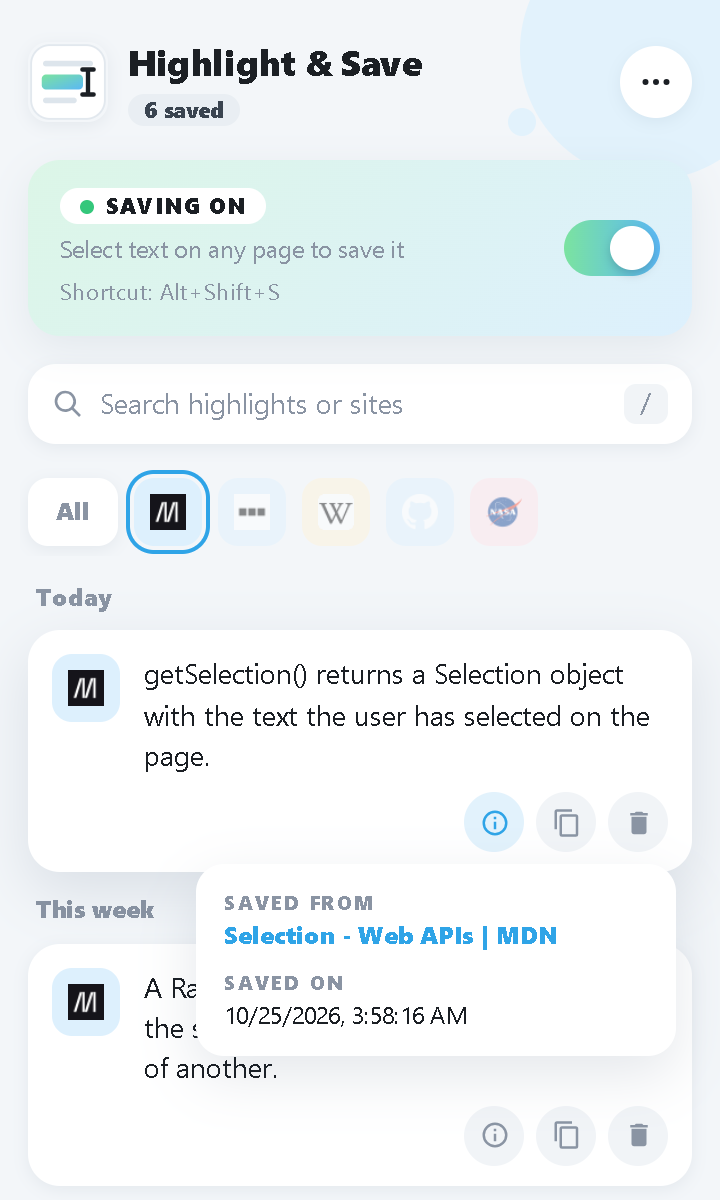
The popup filtered to one site, with the info box showing the source page and the time it was saved.
Source and timeFiltered to one site, with the info box open on a highlight.
Install

Ready in about a minute

Highlight & Save isn't in the Chrome Web Store yet, so you add it from the downloaded folder. It's a one-time setup.

  1. Download and unzip

    Download the .zip and extract it. You'll get a folder named highlight-and-save. Keep it somewhere it won't be deleted, because Chrome loads the extension from it.

  2. Open the extensions page

    Copy this address into Chrome's address bar and press Enter.

    chrome://extensions
  3. Turn on Developer mode

    Use the switch in the top-right corner of the extensions page.

  4. Load the folder

    Click Load unpacked and choose the highlight-and-save folder. Pin the icon from the puzzle-piece menu so the switch is always one click away.

To update later, replace the folder with the new version and click the reload arrow on the extension. Your saved highlights stay.

Privacy

Your highlights stay on your computer

There's no account and no server. Highlights are stored in your browser and are never sent anywhere. Nothing is saved while the switch is off.

PermissionWhy it's needed
storageKeeps your highlights and the on/off setting in your browser.
All websitesNotices text you select, on any page, while saving is on.
scriptingStarts working in tabs that were already open when you installed it.
faviconShows each site's icon next to your highlights.

Start saving what you read

Download Highlight & Save